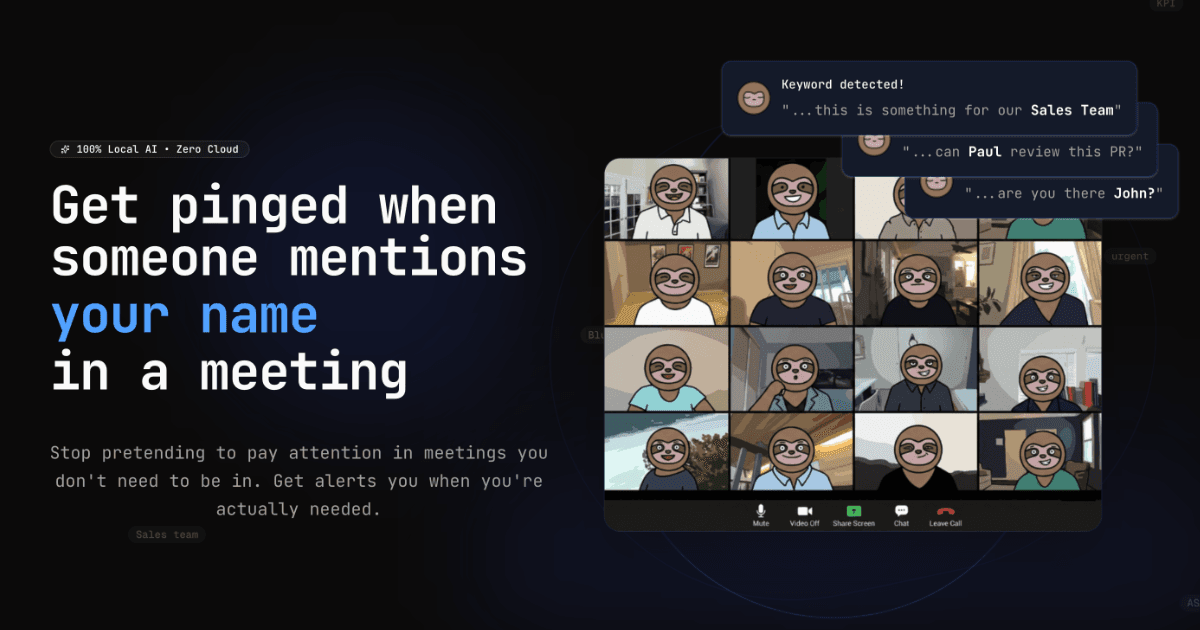
How to Get an Alert When Someone Says Your Name in a Meeting on Mac
Why Waiting for Your Name Ruins Deep Work
Half-listening to a 60-minute status call while trying to write code, answer emails, or review docs is exhausting. You stay hyper-vigilant because missing your name—followed by five seconds of dead silence—is awkward for everyone.
The fix is simple: let your Mac listen for your name and notify you only when someone actually says it.
In this guide, you'll learn how to set up automatic, 100% local name and keyword alerts on macOS across Zoom, Microsoft Teams, Google Meet, and Slack Huddles without inviting any meeting bots.
What You Need Before Starting
To run real-time on-device speech detection smoothly on Mac without sending call audio to the cloud, you need:
- Mac hardware: Apple Silicon Mac (M1, M2, M3, M4, or newer)
- OS version: macOS 12.3 (Monterey) or later
- Memory: At least 8 GB RAM for fast base Whisper models (16 GB recommended for larger models)
- App: PingMeBud for macOS (includes a 7-day free trial, no credit card required)
Step-by-Step: Set Up Meeting Name Alerts on Your Mac
Step 1: Grant macOS System Audio Recording Permission
After installing PingMeBud in Applications and launching it from your menu bar, macOS prompts you for Screen & System Audio Recording permission.
Why? PingMeBud captures your Mac's system audio output directly rather than using your microphone. That distinction gives you two major advantages:
- Zero microphone interference: Your call mute button works normally and your voice isn't constantly re-triggered.
- Works with muted speakers or Bluetooth headphones: Even if you mute your Mac speakers or wear AirPods, PingMeBud still captures the incoming meeting audio cleanly.
Step 2: Pick the Right Local Whisper Model
PingMeBud downloads and runs OpenAI's Whisper models directly on your Apple Silicon Neural Engine. Choose a model based on your Mac's RAM and language needs:
- English-only smaller models (around 1–2 GB RAM): Fastest response times (around 2–4 seconds from spoken word to alert) and lowest battery draw—ideal for M1/M2 MacBooks with 8 GB RAM.
- Larger or multilingual models (up to ~8–10 GB RAM): Higher accuracy in noisy calls, strong accents, or non-English meetings (Spanish, French, German, Japanese, Portuguese, and more).
Once downloaded, the model stays on your Mac and works even completely offline.
Step 3: Add Your Name, Variants, and Wildcard Keywords
Automatic speech-to-text occasionally spells short or unique names differently. Setting smart keywords takes 30 seconds and dramatically improves catch rate:
- Add your primary name and phonetic variants: If your name is
"Jay", add"Jay","J", and"Jaye". If it's"Daniel", add"Daniel"and"Dan". - Add team and project names: Include your squad (
"Blue team","Platform"), manager's name, or product codenames. - Use wildcards (
*) for word variations:assign*matches assign, assigned, assignment, and reassign.block*matches block, blocker, and blocking.*reviewmatches code review and PR review.
- Add conversational phrases: Terms like
"are you there","what do you think","urgent", and"deadline". - Optional — Enable silence detection: Get a ping when everyone stops talking for a stretch, which often means someone is waiting on an answer or the meeting just wrapped up.
With Smart Whisper enabled in PingMeBud, the transcription engine automatically biases toward your configured keyword list for higher accuracy.
Step 4: Choose Your Alert Style (Banner vs. Full-Screen Border)
Standard macOS banners are easy to miss when Do Not Disturb is active or you're buried in another full-screen desktop Space.
PingMeBud supports two alert layers together:
- Native macOS Notification Banner: Displays the matched keyword plus a snippet of what was just said so you have instant context.
- Full-Screen Red Border Flash (Optional): Flashes a clear visual border around your display so you immediately notice the ping across any app or monitor without audio disruption.
Step 5: Test Before Your Next Call
You don't have to wait for a live standup to verify your setup:
- Start monitoring from the PingMeBud menu bar icon.
- Open any YouTube video or podcast containing one of your keywords (or turn your Mac speaker volume to zero to verify muted monitoring works).
- Watch the notification trigger within a couple of seconds with the transcript snippet.
Works Across Zoom, Teams, Google Meet, and Slack Huddles
Because system audio capture operates at the macOS layer, you never need separate browser extensions or platform plugins:
- Setup guide for Zoom name alerts on macOS
- Setup guide for Microsoft Teams name alerts on macOS
- Setup guide for Google Meet name alerts on macOS
- Setup guide for Slack Huddles keyword alerts on macOS
Why Local macOS Alerts Beat Cloud Meeting Bots
Cloud transcription tools like Otter.ai or Fireflies typically join your call as a visible participant and stream company audio to remote servers. That creates real problems:
- Awkwardness & compliance risk: Everyone sees the bot enter the call, and many IT teams block third-party bots entirely.
- Persistent external logs: Cloud tools archive audio and text on vendor servers.
- Recurring subscriptions: Monthly SaaS fees just to catch occasional mentions.
PingMeBud is 100% invisible and RAM-only—transcripts exist strictly in temporary memory during your session and are wiped the moment you close the app. See our full breakdown in PingMeBud vs MacWhisper vs Otter.ai.
Ready to stop babysitting passive calls? Start your 7-day free trial of PingMeBud (no credit card required, then $29 one-time for up to 5 Macs) or inspect all features on the PingMeBud homepage.
Stop watching meetings you don't need to watch
PingMeBud listens to your meetings and alerts you only when your name is mentioned. Runs 100% locally on your Mac.
Related Articles
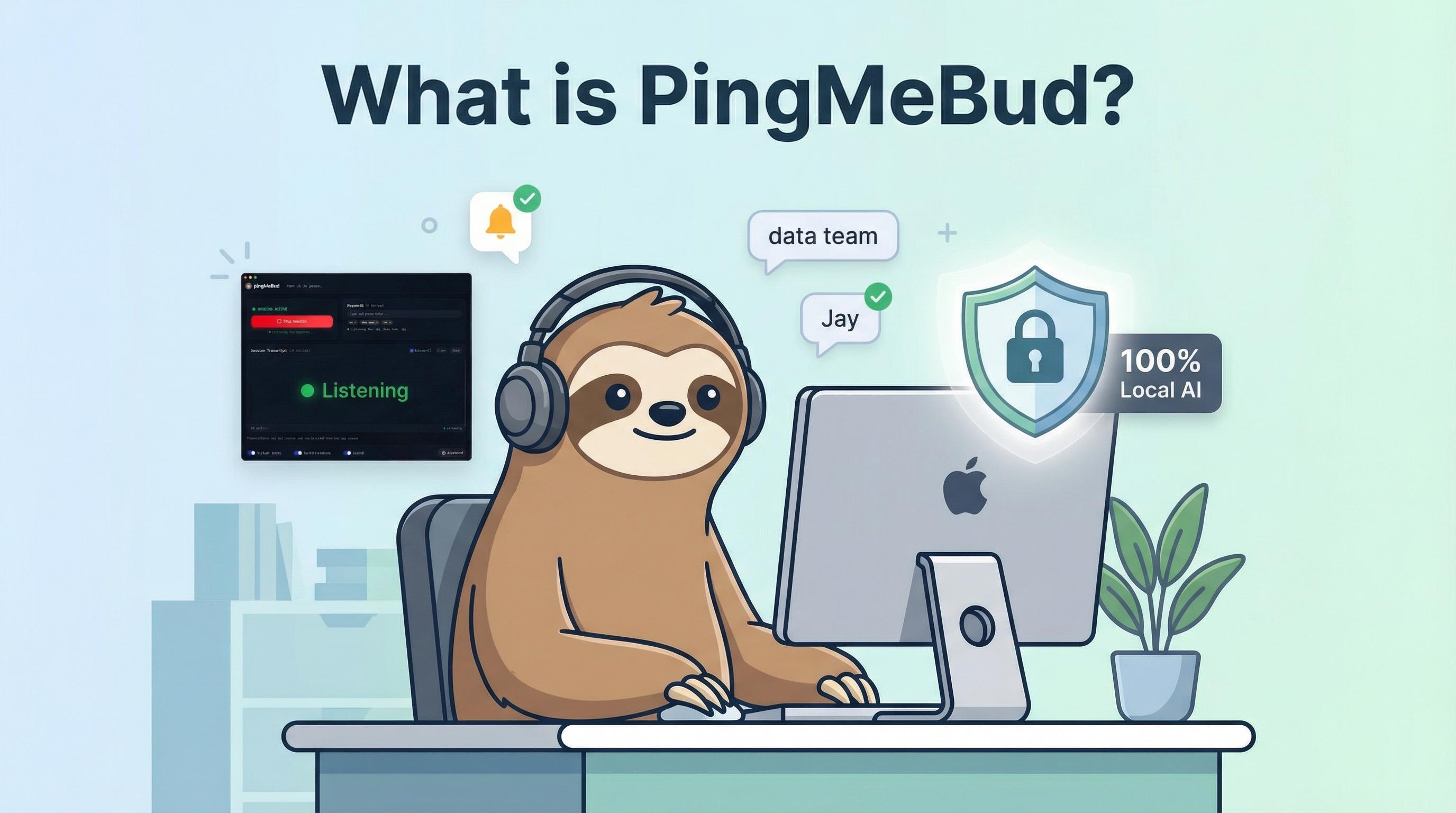
What is PingMeBud? The Local AI Meeting Assistant for macOS
Discover how PingMeBud helps you stay productive during long meetings by alerting you locally on macOS only when your name or custom keywords are spoken.

Best Overemployed Tools & Mac Setup (2026): Calendars, Audio & Private Alerts
The essential overemployed software and hardware stack for remote professionals managing multiple contracts—calendar blocking, audio isolation, and 100% local meeting alerts.
PingMeBud vs MacWhisper vs Otter.ai: Best Private Mac Meeting Assistant (2026)
Compare PingMeBud, MacWhisper, and Otter.ai across real-time name alerts, privacy, meeting bots, Apple Silicon performance, and pricing.