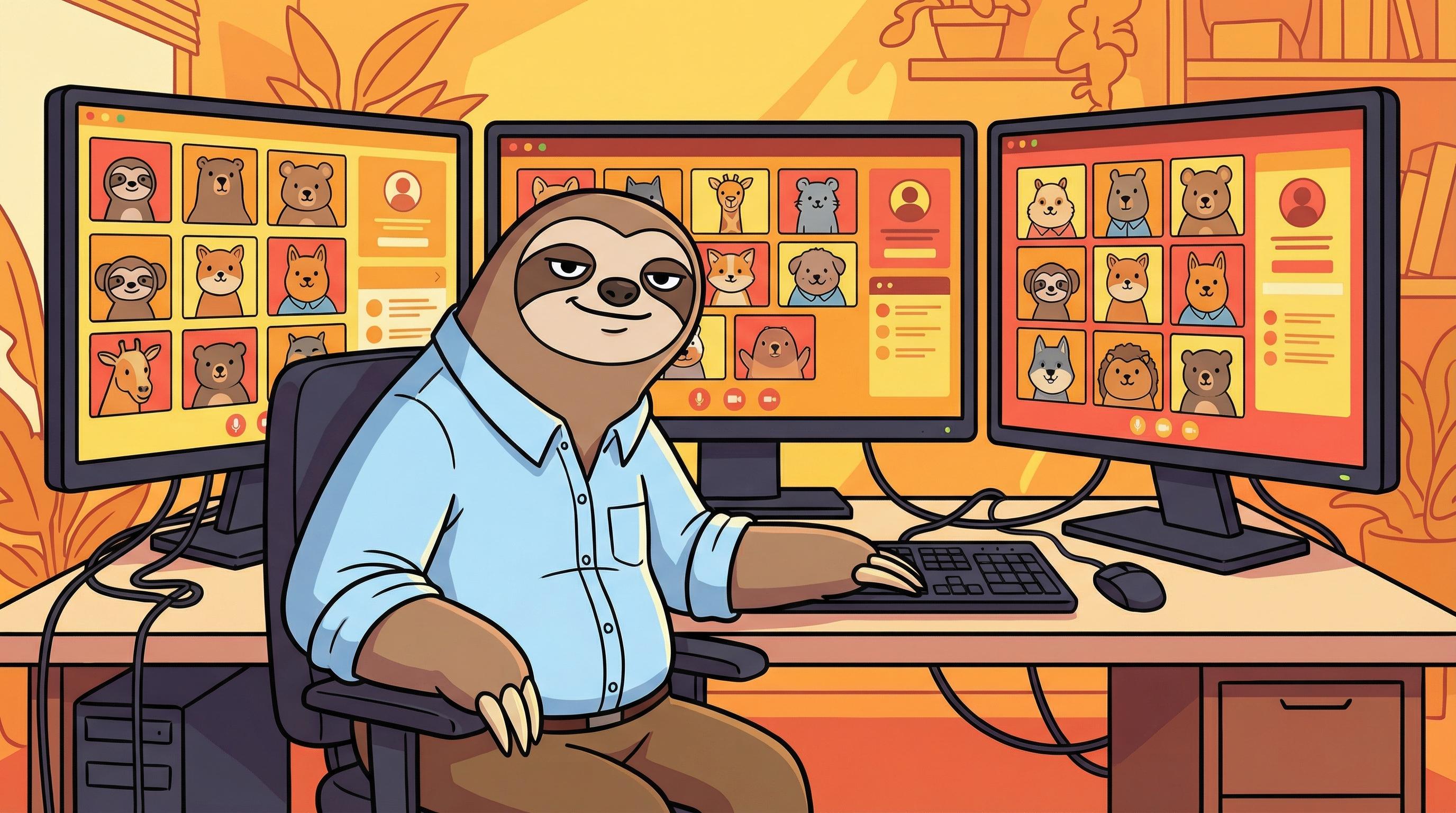
Best Overemployed Tools & Mac Setup (2026): Calendars, Audio & Private Alerts
Why Your Overemployed Mac Setup Matters
Managing multiple remote jobs or consulting contracts smoothly comes down to two things: zero cross-contamination between companies and zero dropped balls during overlapping meetings.
A single careless tool—like a cloud AI meeting bot joining the wrong client call, an unmuted speaker bleeding audio across laptops, or calendar invite visibility leaking across Google Workspace accounts—creates unnecessary risk.
Here is the clean, privacy-first 2026 overemployed tools and macOS setup built around hardware separation, strict calendar hygiene, and 100% local software.
(Also read: The Overemployed Guide: Managing Multiple Jobs and Meetings and How to Handle Two Overlapping Meetings on Mac.)
Quick Stack Overview
| Category | Recommended Setup / Tool | Privacy & IT Detection Risk |
|---|---|---|
| Hardware Isolation | Separate MacBooks per job + KVM/monitor inputs | Lowest (zero shared corporate MDM/accounts) |
| Meeting Name Alerts | PingMeBud (100% local Whisper on macOS) | Very low (Apple-notarized, no bots, RAM-only, no cloud) |
| Calendar Blocking | Personal master calendar + manual OOO/Focus blocks | Low (never sync J1 work calendar directly to J2 via OAuth) |
| Audio Control | Hardware inline mic mute + dedicated headsets | Zero cross-talk when passive Mac stays at 0% speaker volume |
| Browser Isolation | Separate Chrome/Arc profiles or physically separate Macs | Zero cookie or login cross-contamination |
1. Hardware Isolation: Keep Work Environments Separate
Never log into two corporate Google Workspace, Microsoft 365, or Slack accounts on the same company-managed laptop.
- One Mac per employer/contract: Keep each company's MDM profile, VPN, email, and Slack completely isolated on its own machine.
- Physical desk layout: Keep J1 on your left display/input and J2 on your right, with distinct desktop wallpapers and sticky visual markers so you never unmute or share the wrong screen.
- Separate webcams or physical covers: Keep a sliding privacy shutter on every camera when you aren't actively presenting.
2. Calendar & Meeting Conflict Defense
The easiest overlapping meeting to handle is the one you prevent before it gets booked:
- Block focus windows proactively: Reserve recurring 30–60 minute focus blocks on both calendars around your highest-risk overlap hours.
- Avoid third-party calendar OAuth bridges on work accounts: While tools like Reclaim or Calendly are great for freelance/consulting setups, connecting a J1 corporate calendar to a J2 scheduling tool via OAuth can expose event metadata or leave audit trails. Manual mirrored "Busy" blocks from a personal calendar keep both workplaces clean.
- Stagger start/end times: Suggest 25- or 50-minute meetings whenever you schedule calls to preserve transition buffers.
3. Audio Separation & Hardware Mute Discipline
Software mute buttons lag or hide behind overlapping windows. Build physical certainty into your audio chain:
- Physical mic mute switches: Use headsets or USB microphones with a physical hardware mute button and visible LED indicator.
- Keep passive calls silent out loud: Never play a secondary meeting out of open desk speakers while another call's microphone is open—room bleed is instantly audible.
- Run local system-audio monitoring at 0% volume: Instead of straining to listen to two earbuds at once, mute the secondary Mac's speaker volume completely and let local keyword detection watch the stream for your name.
4. Invisible Local Meeting Monitoring (PingMeBud)
Most mainstream AI meeting tools—like Otter.ai, Fireflies, or cloud transcription plugins—are unusable for overemployed workflows because they join as visible participants, send audio to external servers, and get flagged by corporate IT.
PingMeBud is built around the exact constraints privacy-sensitive Mac users need:
- 100% Local on Apple Silicon: Runs OpenAI's Whisper models directly on your M1/M2/M3/M4 Mac with zero cloud API calls.
- Completely Invisible: Captures system audio output passively—no bots join your Zoom, Teams, Google Meet, or Slack Huddle roster, and no microphone permission is used.
- RAM-Only Storage: Nothing is written to disk. Close the session and all live transcripts disappear permanently.
- Apple Signed & Notarized: Passes macOS Gatekeeper cleanly without installing MDM kernel extensions or background daemons.
- Works With Speakers Muted: Monitor a passive call silently at 0% speaker volume and still get an instant full-screen red border flash + snippet within 2–4 seconds if someone says your name, project, or wildcard keyword (
assign*,urgent, silence). - Up to 5 Macs per License: A single $29 one-time PingMeBud Pro license (after a 7-day free trial) activates on up to 5 Apple Silicon devices—covering your personal and multi-contract Macs with zero recurring subscriptions or company emails required.
For a deeper look at why local processing beats cloud assistants under strict IT rules, read our 2026 Guide to Privacy-Focused Meeting Tools and Local AI vs Cloud Meeting Transcription.
5. Notification & Screen-Sharing Hygiene
When sharing your screen in one job, the worst leak is an unrelated Slack message or calendar reminder popping up in the corner:
- Enable macOS Focus / Do Not Disturb while screen-sharing, or share only the specific browser window/IDE—never your entire desktop.
- Keep cross-job communications off your main display: Check secondary chat pings on your phone or keep the secondary laptop positioned completely out of webcam reflection range.
6. Security Rules You Should Never Break
- Never install browser extensions that record or upload meeting audio on corporate profiles.
- Never use your work email to sign up for personal productivity utilities.
- Never share code, repos, or clipboard managers across different employers' machines.
Ready to upgrade your Mac setup? Download PingMeBud's 7-day free trial (no account, no credit card, 100% local on Apple Silicon) and test silent meeting monitoring before your next double-booked morning.
Stop watching meetings you don't need to watch
PingMeBud listens to your meetings and alerts you only when your name is mentioned. Runs 100% locally on your Mac.
Related Articles
How to Handle Two Overlapping Meetings at the Same Time on Mac
A practical macOS playbook for managing two overlapping Zoom, Teams, or Google Meet calls simultaneously—covering audio separation, mute discipline, and local name alerts.
The Overemployed Guide: Managing Multiple Jobs and Meetings Like a Pro
Strategies and tools for overemployed professionals juggling multiple remote jobs without getting overwhelmed by back-to-back meetings.
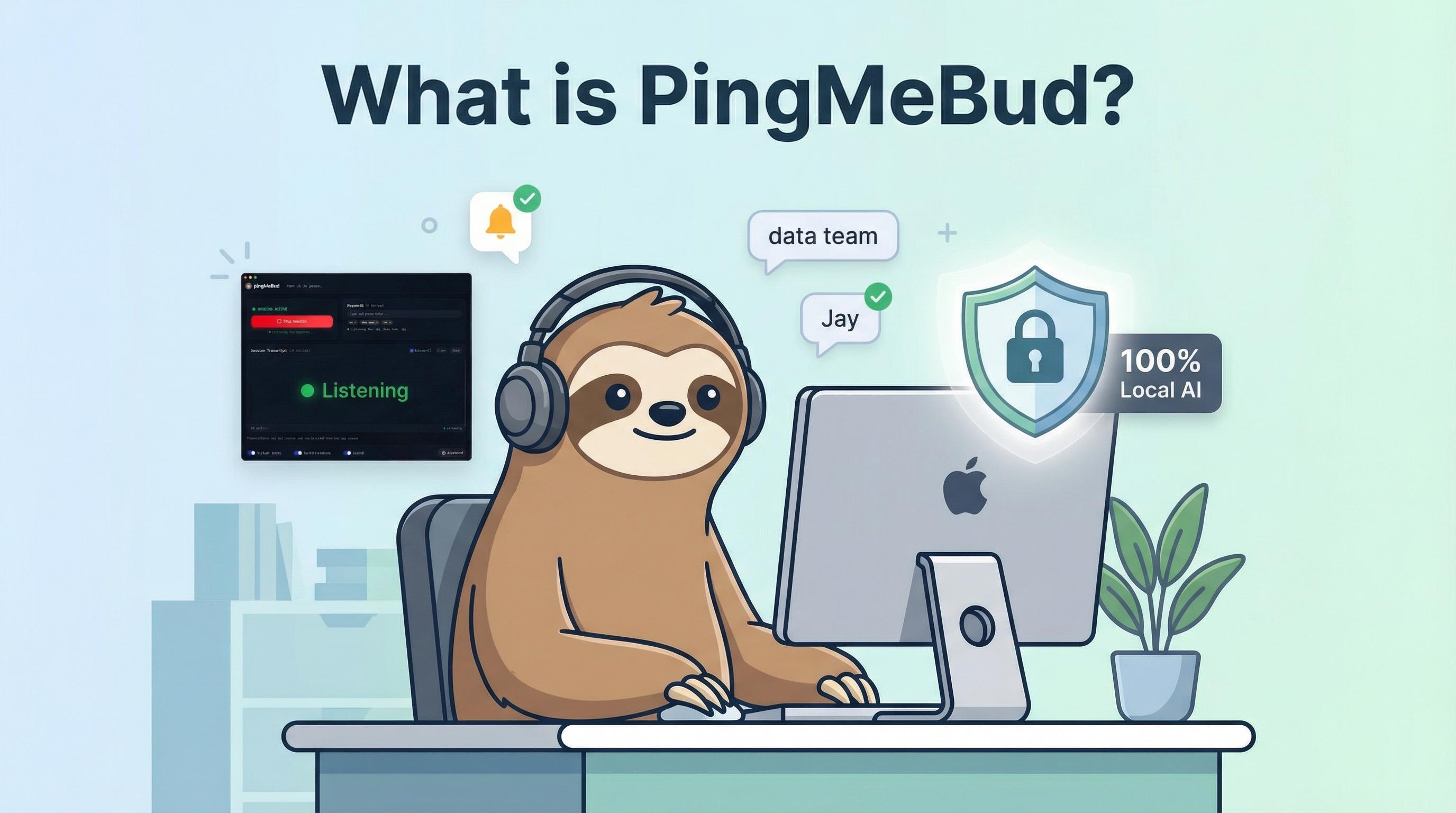
What is PingMeBud? The Local AI Meeting Assistant for macOS
Discover how PingMeBud helps you stay productive during long meetings by alerting you locally on macOS only when your name or custom keywords are spoken.