
How to Handle Two Overlapping Meetings at the Same Time on Mac
The Reality of Two Overlapping Meetings
Every overemployed engineer, consultant, or multi-contract remote worker eventually hits the dreaded double-booked slot: a J1 sprint sync at 10:00 AM colliding with a J2 stakeholder update at 10:15 AM.
Trying to actively listen to two conversations in both ears at the same time doesn't work—the human brain can't process two overlapping voice streams reliably, and you end up missing direct questions on both calls.
The reliable way to manage two meetings at the same time on Mac isn't multitasking with your ears—it's pairing strict physical mute discipline with automated local keyword monitoring so you only switch attention when a call actually needs you.
(New to multi-job calendar strategy? Start with The Overemployed Guide: Managing Multiple Jobs and Meetings Like a Pro.)
Rule #1: One Active Call, One Monitored Call
Never try to be an active speaker in two calls simultaneously. Before overlapping meetings start, assign each call a role:
- Active Call (Full Attention): Any meeting where you are presenting, sharing your screen, running the agenda, or required to stay on camera.
- Monitored Call (Passive Attendance): Large standups, all-hands broadcasts, status round-robins, or informational calls where your camera can stay off and you stay muted until called on.
If both calls require active presenting at the exact same minute, reschedule or move one—don't gamble with live cross-talk.
Audio Separation Setups That Prevent Bleed
How you route audio determines whether you can catch questions without leaking sound between calls.
Setup A: Two Separate Macs + Separate Audio Channels (Lowest Risk)
If each contract or job issues its own MacBook, keep physical hardware isolation:
- Primary Active Mac: Dedicated wired headphones or a USB headset plugged directly into the laptop you are speaking on.
- Secondary Monitored Mac: Speaker volume muted to 0% with PingMeBud capturing system audio locally—or a single wired earbud in one ear at low volume for backup.
Why 0% speaker volume + local system-audio alerts works so well: because PingMeBud captures macOS system audio before it hits your speakers, you still get instant real-time keyword alerts and live transcript snippets even when your Mac speakers are completely muted. Zero chance of J2 audio bleeding into J1's microphone.
Setup B: Single Mac With Dual Browser Profiles or Apps
If you run two calls on one Apple Silicon Mac (for example, a Zoom desktop call and a Google Meet tab, or two separate browser profiles):
- Keep the monitored meeting tab/app muted at the system or tab level only if you don't need audio playback, OR route your Mac output cleanly while keeping your microphone muted in the passive call.
- Run PingMeBud in your menu bar monitoring your Mac's system audio output across Zoom, Microsoft Teams, Google Meet, and Slack Huddles simultaneously.
Bulletproof Mute & Camera Discipline
Most dual-meeting slip-ups come from forgetting which window is unmuted. Eliminate software guesswork with physical controls:
- Use a physical inline or USB mic mute switch on your active headset (or dedicated keyboard shortcut tied to hardware mute). Never rely solely on clicking the tiny Zoom/Teams UI icon when rushing between windows.
- Keep cameras physically covered or off on passive calls unless actively speaking—a cheap sliding webcam cover guarantees no accidental camera-on surprise while you're glancing at another screen.
- Never talk before checking both mute indicators: Before speaking in your secondary call, mute your active call's mic first, verify the red mic icon, wait one full second, then unmute the target call.
Why Local System-Audio Alerts Beat Trying to Half-Listen
Trying to split your focus across two live audio streams causes cognitive overload—and missing your name followed by five seconds of silence is an instant red flag.
Using local AI keyword monitoring changes the workflow completely:
- Monitors at 0% speaker volume: PingMeBud reads macOS system audio directly, so your passive meeting doesn't distract your ears while you're speaking on your active call.
- 2–4 second alert latency: Runs OpenAI's Whisper natively on Apple Silicon Neural Engine.
- Full-screen red border flash: Even if you're locked into a full-screen Zoom window or IDE Space on another display, the optional screen-edge flash catches your eye instantly without making a chime that could leak into your active mic.
- Wildcard & phrase triggers: Track your name variants, team name,
"are you there",assign*, or even silence detection to catch awkward pauses. - 100% invisible & RAM-only: Unlike cloud bots (Otter, Fireflies) that join your call roster and upload transcripts to external servers, PingMeBud never joins the meeting and erases all live transcript data from RAM when the session ends.
Check our full guide on how to set up name alerts on Mac for exact Whisper model and keyword tips.
The 3-Second Context Switch Checklist
When PingMeBud flashes an alert on your monitored call, follow this exact sequence so you never sound caught off guard:
- Glance at the snippet: Read the 1–2 sentences shown in the PingMeBud notification so you immediately know who asked what.
- Mute active call first: Hit your physical mute or active call mute button (
Cmd+Shift+Aon Zoom /Cmd+Shift+Mon Teams /Cmd+Don Meet) before touching the second call. - Unmute, answer concisely, and re-mute: Respond directly to the question from the snippet—no "Sorry, you cut out, can you repeat that?"—and immediately mute again once you finish speaking.
4 Mistakes That Blow Your Cover in Dual Meetings
- Unmuting the wrong call: Always place J1 on the left monitor/desk side and J2 on the right with distinct wallpapers so your muscle memory never confuses windows.
- Using cloud meeting bots: Any tool that joins as
"User's Notetaker"in J1 or J2 exposes external tooling and violates IT compliance rules. - Playing passive audio out loud near a sensitive mic: Modern laptop condenser mics pick up speaker bleed easily—keep passive speakers muted and rely on visual alerts.
- Skipping calendar buffers: Even 15-minute buffers between meetings across contracts dramatically cut the number of overlapping calls you ever have to juggle.
For the complete hardware, calendar, and privacy software stack, read Best Overemployed Tools & Mac Setup (2026). Ready to test muted-speaker keyword alerts on your Mac? Download PingMeBud's 7-day free trial (no credit card required, $29 one-time for up to 5 Macs).
Stop watching meetings you don't need to watch
PingMeBud listens to your meetings and alerts you only when your name is mentioned. Runs 100% locally on your Mac.
Related Articles
Best Overemployed Tools & Mac Setup (2026): Calendars, Audio & Private Alerts
The essential overemployed software and hardware stack for remote professionals managing multiple contracts—calendar blocking, audio isolation, and 100% local meeting alerts.
The Overemployed Guide: Managing Multiple Jobs and Meetings Like a Pro
Strategies and tools for overemployed professionals juggling multiple remote jobs without getting overwhelmed by back-to-back meetings.
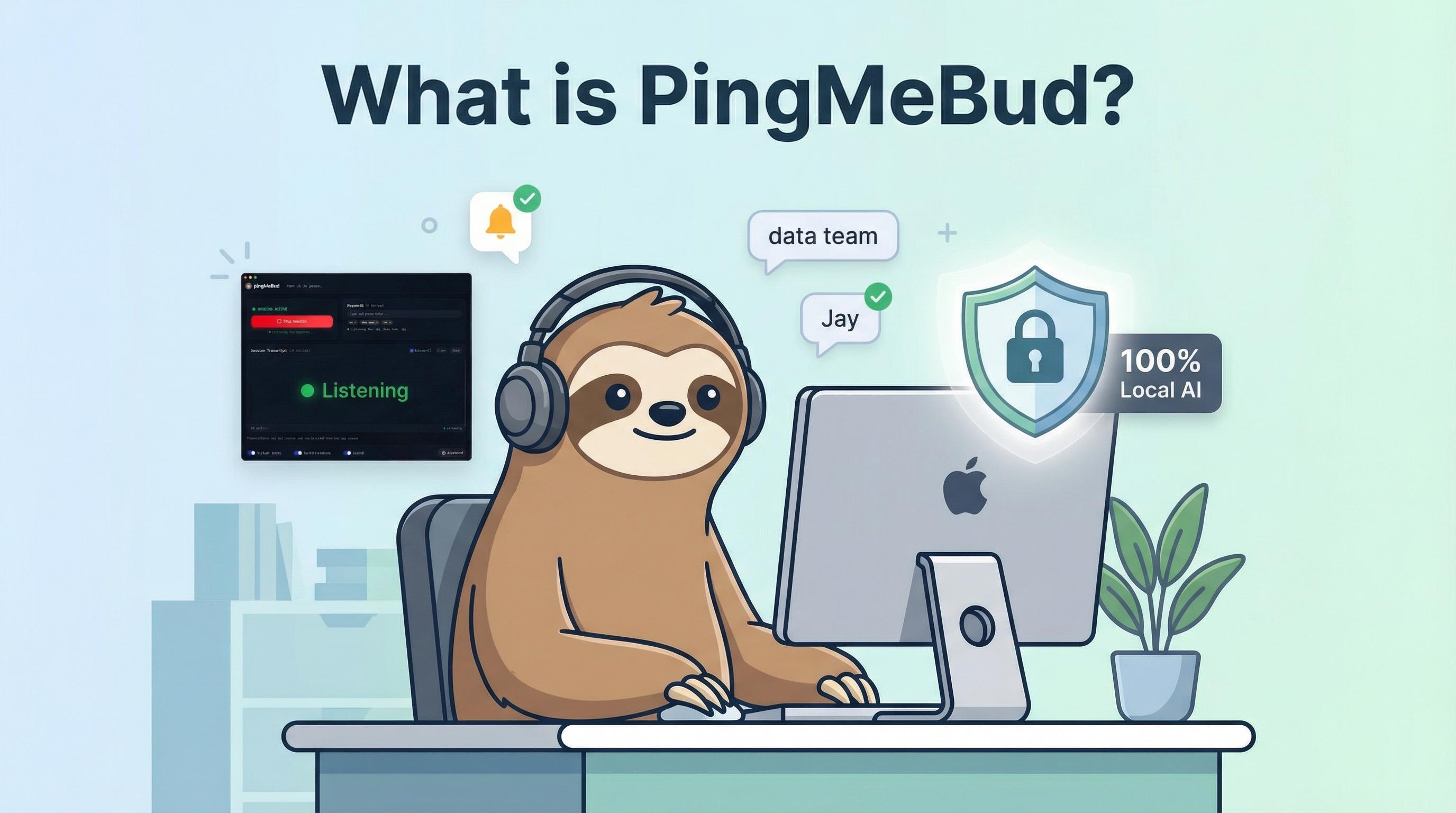
What is PingMeBud? The Local AI Meeting Assistant for macOS
Discover how PingMeBud helps you stay productive during long meetings by alerting you locally on macOS only when your name or custom keywords are spoken.